
Click any tenant row from the Tenants list and you land on its detail page — the single screen that shows everything about one tenant. Five regions, top to bottom: header, identity cards, provisioning timeline, allocated resources, and lifecycle actions.
During provisioning
Section titled “During provisioning”While the provisioning workflow is in flight, the detail page polls every few seconds and the timeline fills in step by step. The state badge under the tenant name reads "Provisioning" and the action buttons are not yet available — there's nothing you can do to a tenant that doesn't exist yet.
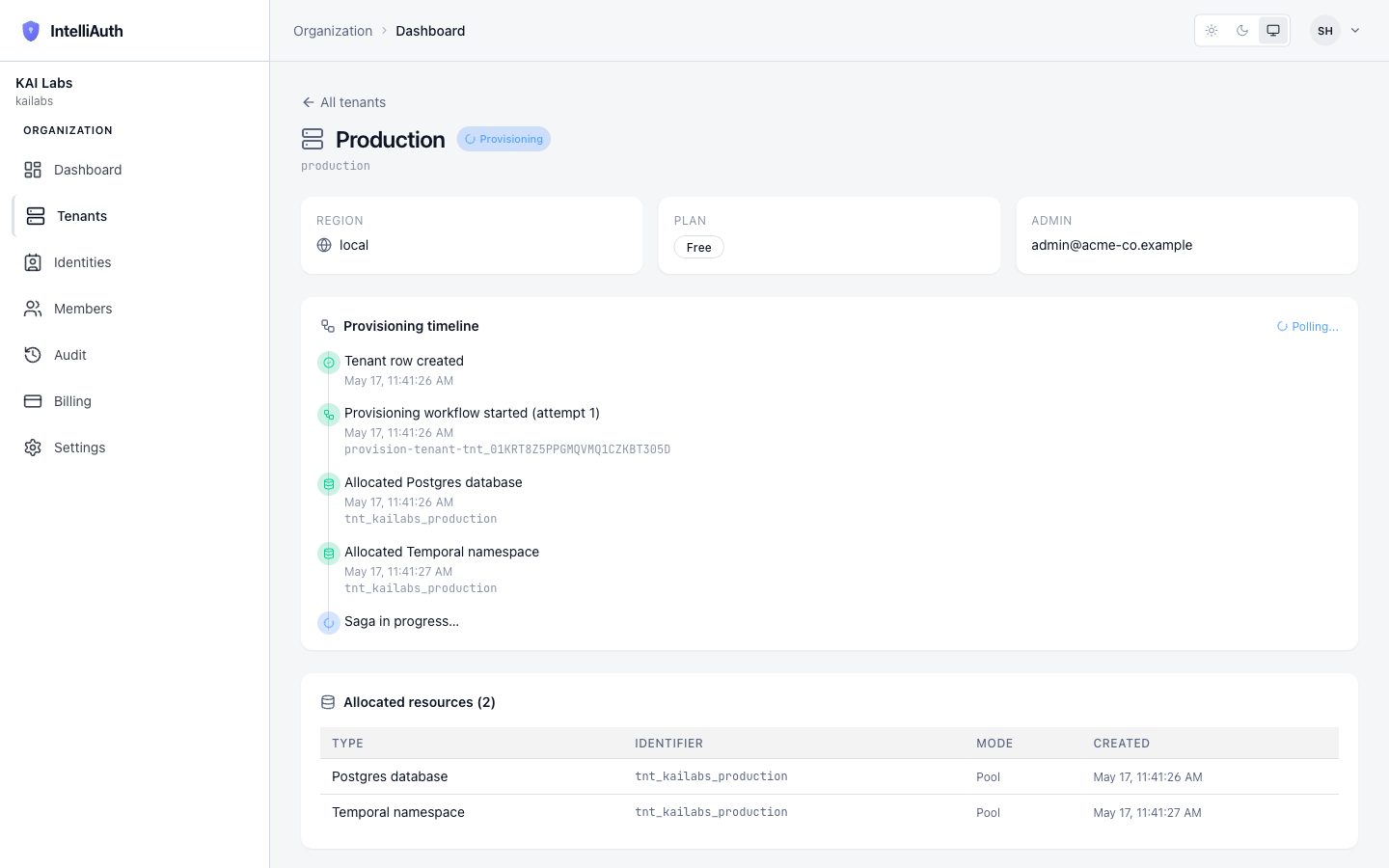
The timeline is the most useful surface while a saga is running: it tells you exactly which step you're on and surfaces the failure step name if something stalls.
After activation
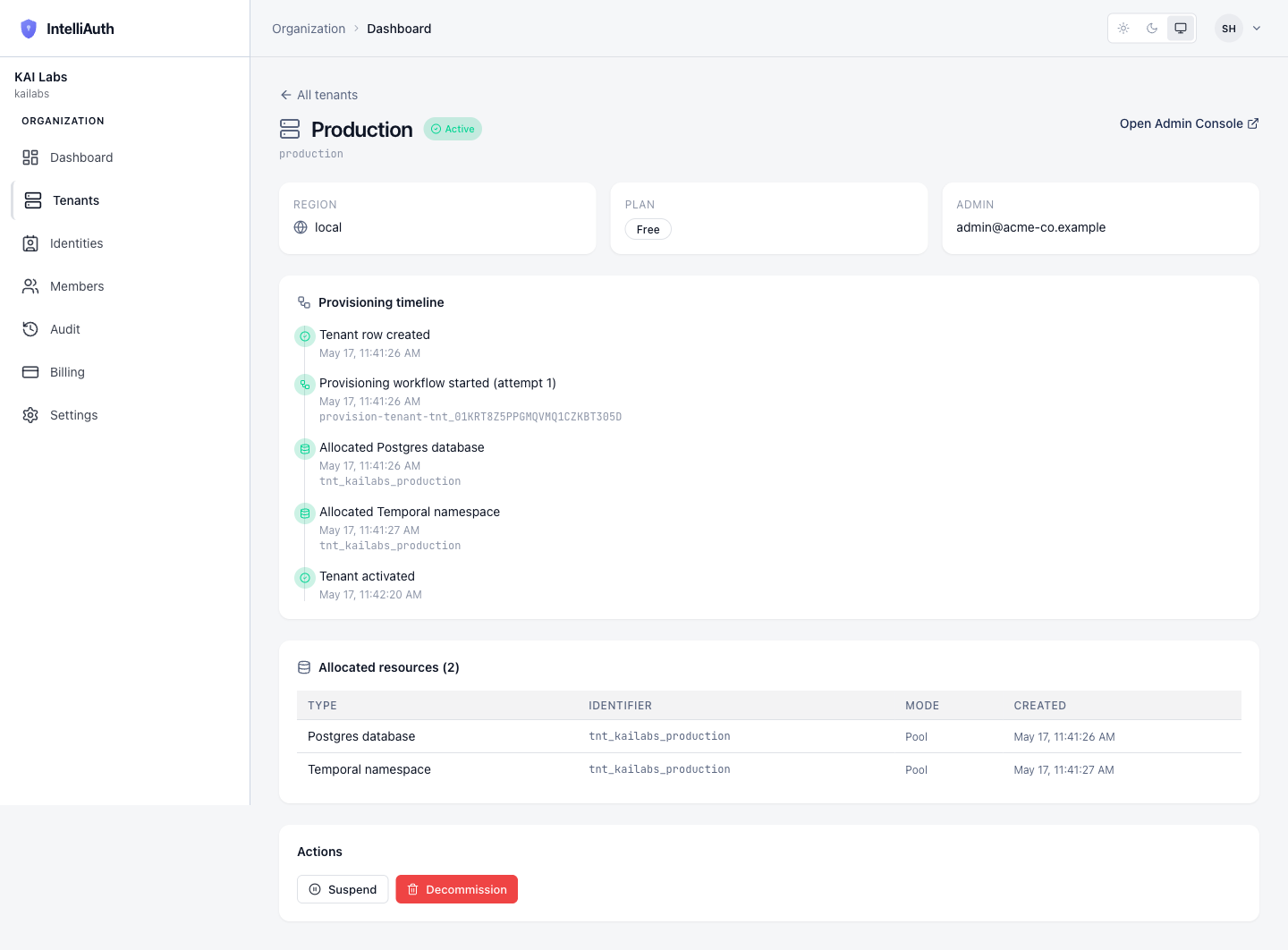
Section titled “After activation”Once the workflow reaches the Tenant-activated step, the page updates with two new things: the state badge flips to Active in the header, and an Open Admin Console link appears next to it that deep-links to the tenant's own admin console at https://<slug>-<org>.<domain>/admin. The Actions section at the bottom of the page also reveals two lifecycle buttons: Suspend and Decommission.
What the page surfaces
Section titled “What the page surfaces”Walking the page top to bottom:
- Header. Tenant name, state badge (one of Pending, Provisioning, Active, Suspended, Failed, Decommissioned), slug, and — when state is Active — a link to the tenant's admin console.
- Identity cards. Region, Plan, and the first-admin email you provided at creation. These are read-only here; changing the admin user happens inside the tenant's own admin console.
- Provisioning timeline. Chronological record of the provisioning saga's steps with timestamps. While provisioning is in flight, a polling indicator sits next to the heading. After activation, the polling indicator disappears.
- Allocated resources. A small table of the resources the platform allocated for this tenant. Type, identifier, mode, and creation timestamp. Useful when you're cross-referencing with platform-level operational dashboards.
- Actions. Lifecycle buttons that change state. Which buttons appear depends on the current state — see Tenant lifecycle for the full state-to-actions mapping.
What this page does NOT do
Section titled “What this page does NOT do”Three things deliberately don't live here:
- Tenant configuration. Authentication policy, branding, MFA enforcement, user lists — all of that lives inside the tenant's own admin console at
https://<slug>-<org>.<domain>/admin. The detail page only shows what the platform knows about the tenant. - Editing the slug. Slugs are immutable post-creation. If you genuinely need a different slug, decommission and recreate is the path — see Recreate or delete a decommissioned tenant.
- Editing the admin email. Once provisioning sends the activation message, the admin user is owned by that email. Changing it is a tenant-admin action, not a platform-admin one.