
After you sign in for the first time you're dropped at the control plane dashboard. The left sidebar is the same on every page; the seven sections below cover everything the console does. Two minutes of orientation will save you ten of clicking around.
https://manage.intelliauth.local/dashboard
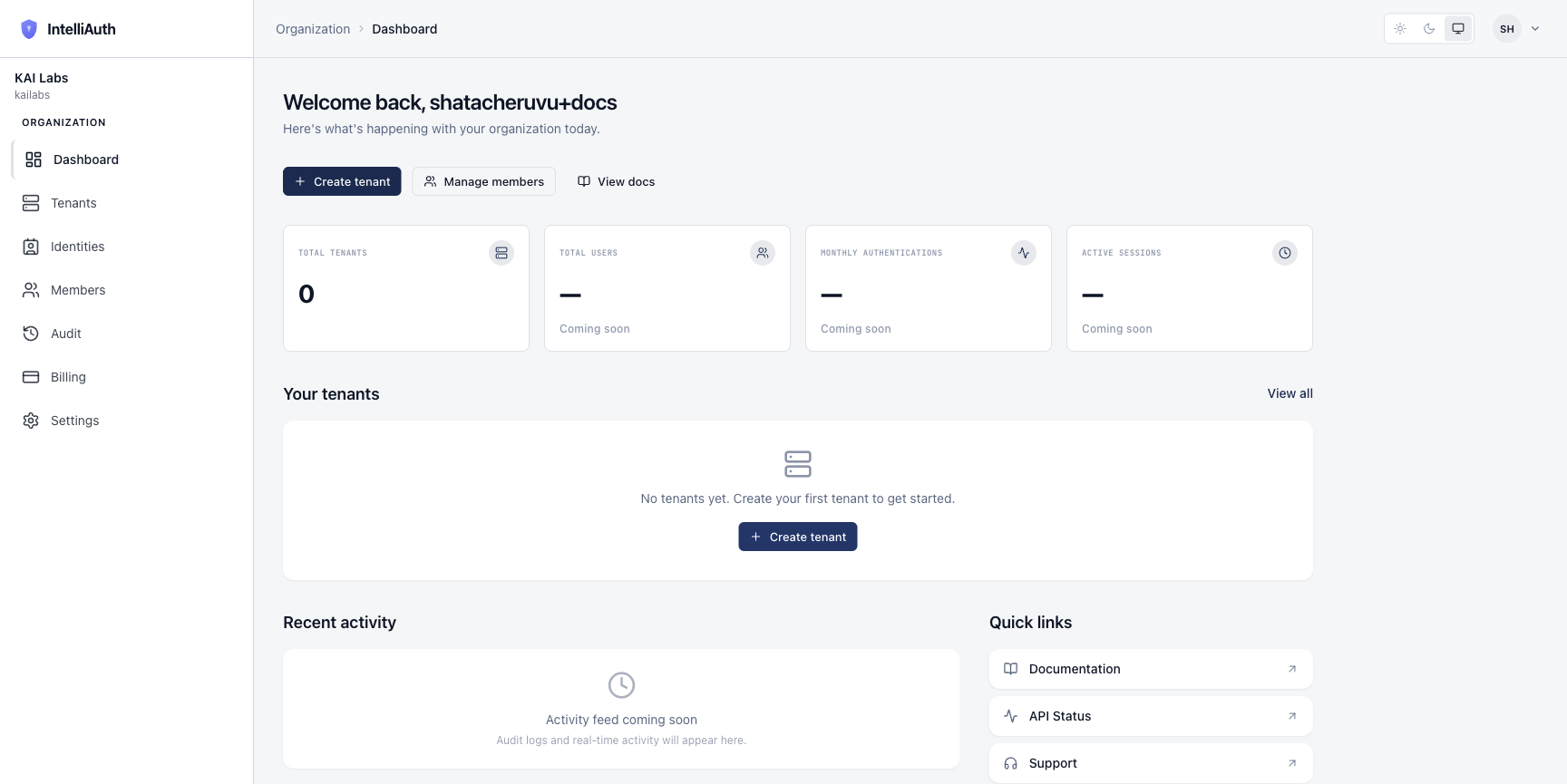
The sidebar
Section titled “The sidebar”The sidebar is always there. Top to bottom:
- Dashboard — KPIs across the org, recent activity, quick links. The home page.
- Tenants — your authentication boundaries. Each tenant is one customer (typically). Tenants overview.
- Identities — the aggregate view of every user across every active tenant. Read-only here; per-user edit happens in each tenant's own admin console.
- Members — the humans operating this organisation (you, your team). Not the end-users of your products — those live inside tenants as identities.
- Audit — every state-changing action the platform takes, in chronological order. Useful for "who did what, when."
- Billing — plan, usage, invoices. Comes online when billing is enabled for your plan.
- Settings — org name, slug (immutable), the danger-zone delete.
The dashboard at a glance
Section titled “The dashboard at a glance”The main pane shows three things on first load:
- A welcome banner with three quick actions (Create tenant, Manage members, View docs).
- Four KPI cards — Total Tenants, Total Users, Monthly Authentications, Active Sessions. On a freshly-provisioned org all four read zero or "Coming soon" — they fill in as you create tenants and users start authenticating.
- An empty-state CTA under "Your tenants" inviting you to provision your first tenant. This same CTA reappears on the Tenants page.
A "Recent activity" panel below populates as your org accumulates a history.
The top bar
Section titled “The top bar”Above the main pane, the top bar carries:
- A breadcrumb on the left ("Organization › Dashboard").
- A theme toggle in the middle (Light / Dark / System). Your choice persists across sessions.
- A user menu on the right (your initials in a chip). Sign out, profile, and any account-level actions live here.
Where to go first
Section titled “Where to go first”Three suggestions for what to click next:
- Tenants → Create your first tenant. This is the primary action of the platform. Provision a new tenant walks through the dialog field by field.
- Members → Invite member. If you're operating the platform with a team, bring them in now while context is fresh. Members overview.
- Settings → Organization name. If you want to rename your org or check what the slug ended up as, the General settings panel is the place.