Every invitation you send sits in the Pending invitations tab until the recipient accepts. From there you have two affordances on each row: Resend invitation (sends the email again with a fresh expiry) and Revoke invitation (invalidates the link entirely).
The pending invitations table
The Pending tab shows columns for email, role, status, expires, plus per-row action buttons.
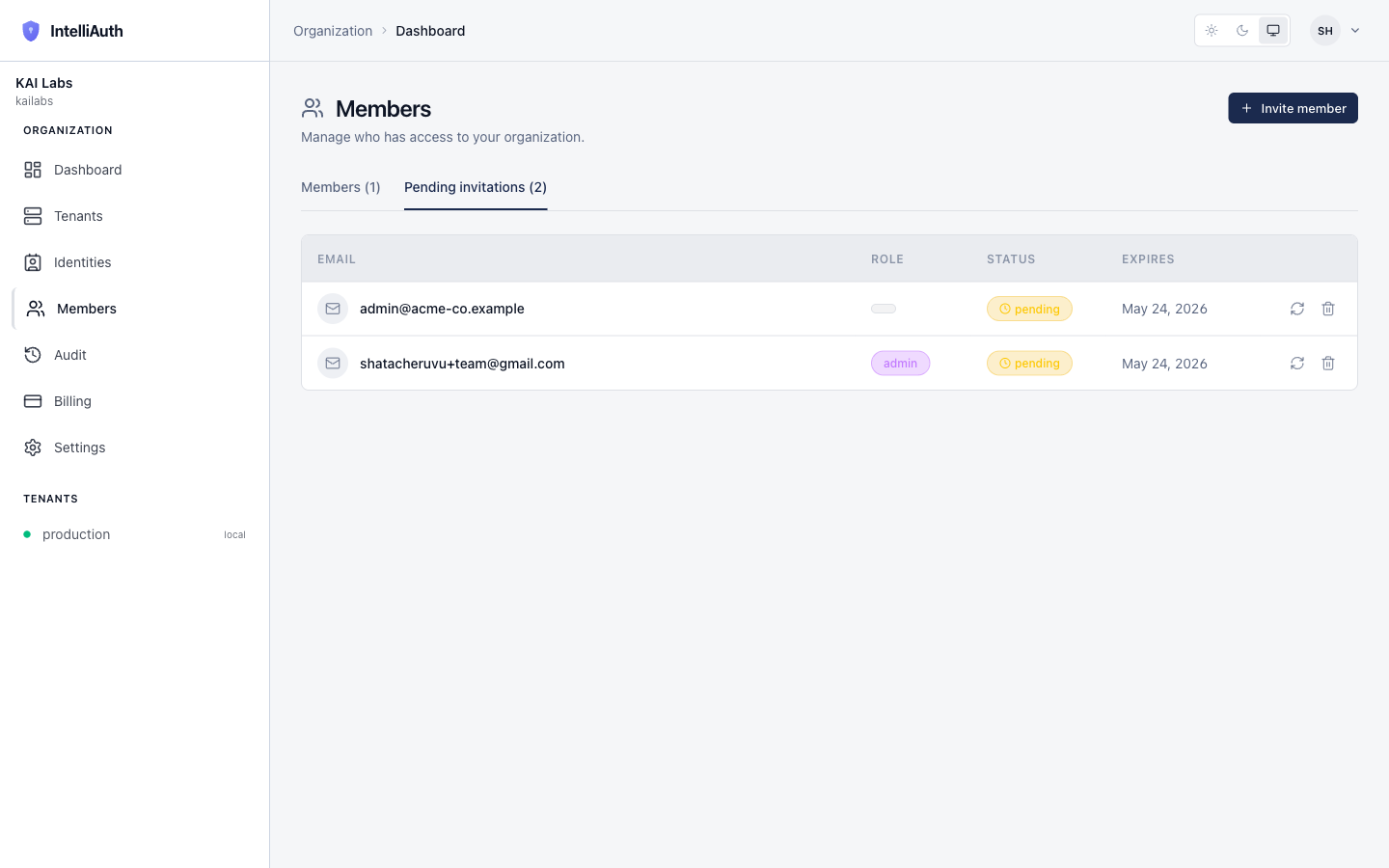
Invitations expire 7 days after issue. Once expired, the row stays in the table with status expired so you can see the history; clicking Resend on an expired invite issues a fresh link with a new 7-day window.
Resend an invitation
Click the Resend button on the row. The platform:
Generates a fresh invitation token (the old one is invalidated).
Sends a new email to the same address with the fresh link.
Resets the expiry to 7 days from now.
Emits
org.invitation_resentto the audit feed.
A toast confirms the resend ("Invitation resent"). The recipient gets a new email; they can click either the new link or, if they kept the old email, they'll find the old link no longer works.
When to resend:
The recipient says they didn't get the email (check spam first, but resend if needed).
The invitation expired before they accepted.
The recipient lost the original email and can't find it.
Revoke an invitation
Click the Revoke button on the row. A confirm dialog opens showing the email address you're about to revoke:
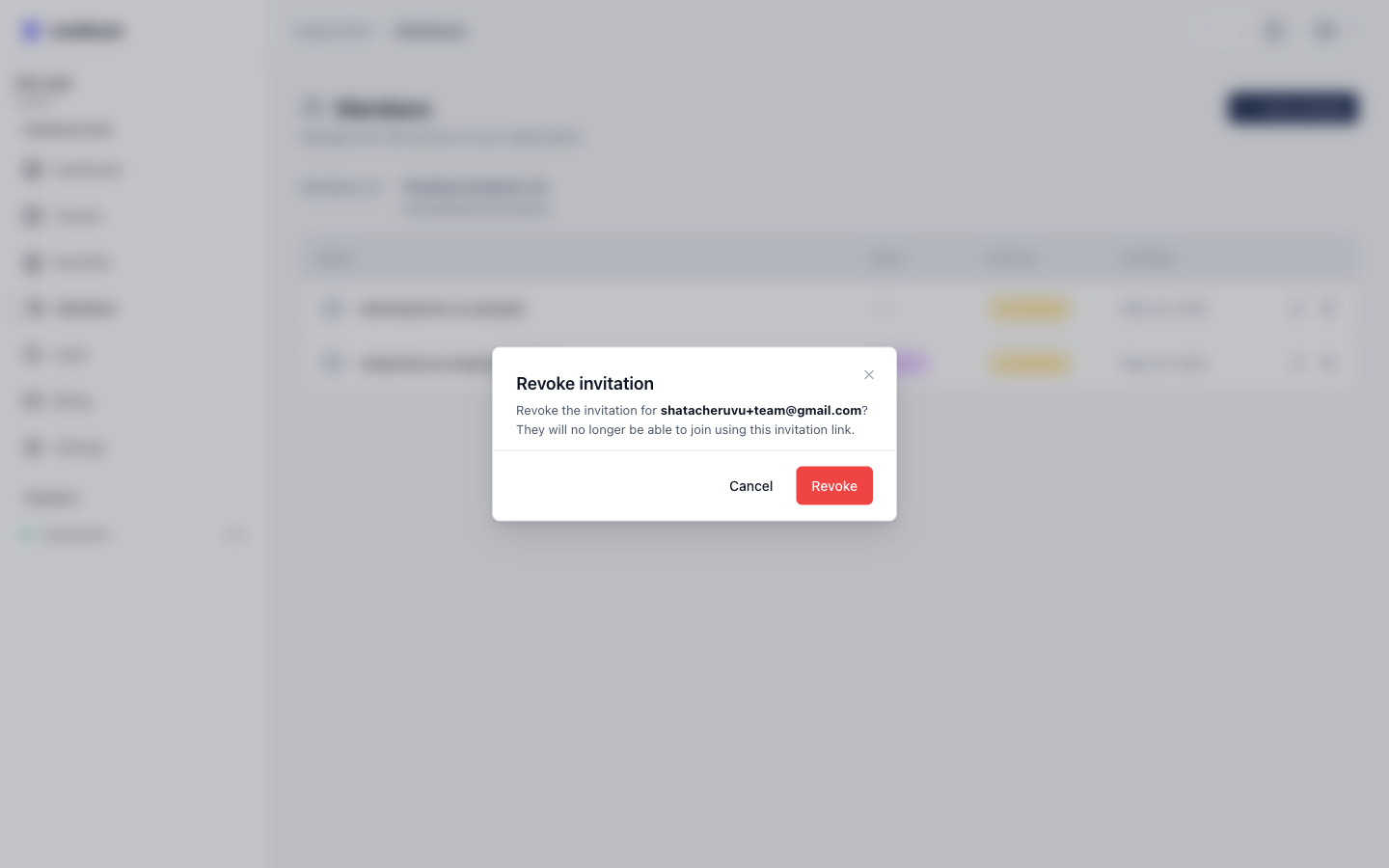
Click Revoke to confirm. The platform:
Invalidates the invitation token. The link in the recipient's email stops working.
Removes the row from the Pending tab.
Emits
org.invitation_revokedto the audit feed.
If the recipient clicks the now-revoked link, they see a "This invitation is no longer valid" page with a hint to contact the organisation owner if they think it was revoked in error.
When to revoke:
The recipient is no longer joining the team (changed roles, left the company).
The invitation was sent in error (wrong email, wrong role).
You're cleaning up old pending invitations as part of a security review.
What revoke doesn't do
It doesn't remove an accepted member. Revoke only applies to pending invitations. Once someone accepts and joins, they're a member; use Remove a member instead.
It doesn't email the recipient. No notification is sent. If you need to tell them you've revoked, do that out-of-band.
It doesn't free the email for a fresh invite at lower cost. You can immediately re-invite the same email at a different role; it'll create a new pending row.